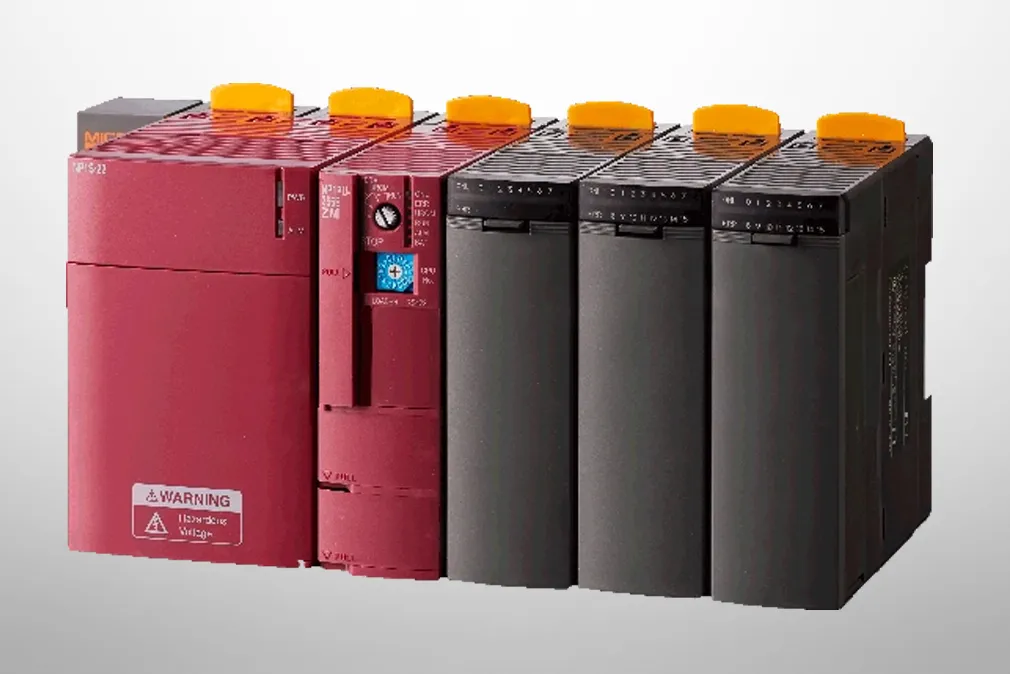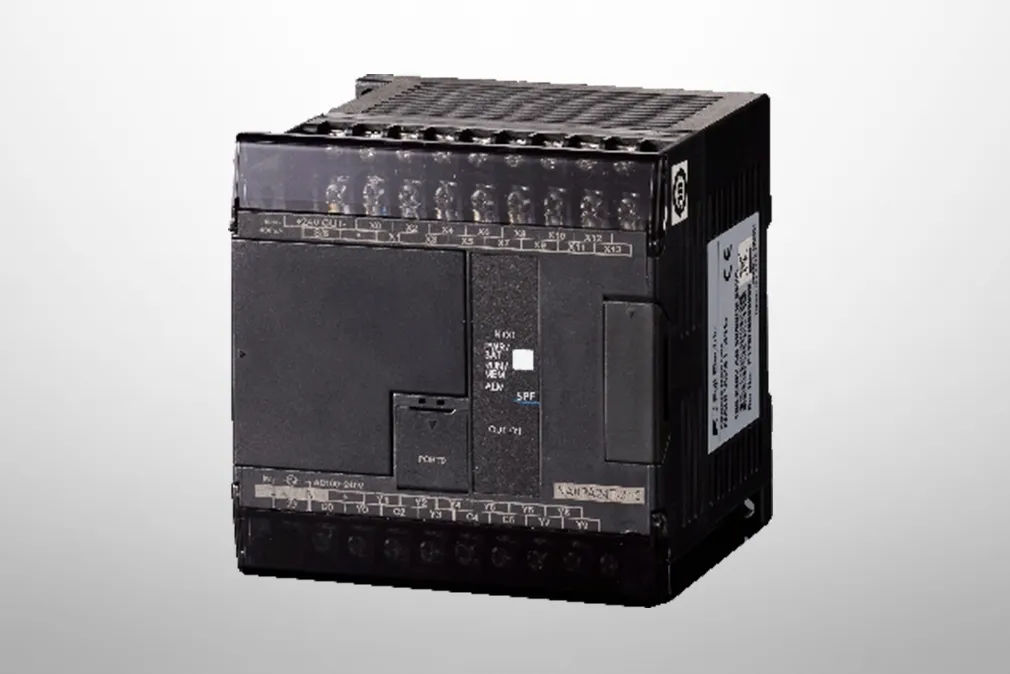




Upgrading the MICREX-SX Series Programming Support Tool
November 17,2025
Fuji Electric Co., Ltd.
Log in to download the upgraded version of the programming support tool.
After logging in, click the "Download documents" button to jump to the download page.
The upgraded version of the programming support tool can be downloaded from the "Download documents" page.
You can download the SX-Programmer Standard (Monitor) update file (please select after login).
We would like to inform you that the Fuji Electric FA website has upgraded the software Standard of our programming support tool.
Applicable model
IEC 61131-3-compliant programming support tool: SX-Programmer
Upgrade service details
This new service gives registered users of Standard direct access to the latest version of the software through the upgrade feature on the Fuji Electric FA website. Users can download the most recent version of the software from the website at their convenience.
Name of the upgrade file for SX-Programmer : StandardUpdateV3143.exe
Monitor version upgrade file for SX-Programmer : StandardMonitorUpdateV3143.exe
Main changes in the latest version: V3.1.4.3 (October 2025)
The following functions are added, and have been improved.
-
Added Model Transition Function to support migration from SPH200 to SPH2200-048RN.
-
Supports Model Change Function for SPH2200 and SPH3300. SPH2200 and SPH3300 can only be change Model Change within the same series.
-
NP1PM-048RN⇔NP1PM-048EN
-
NP1PU-048EN⇔NP1PU-096EN⇔NP1PU-128EN⇔NP1PU-256EN
-
-
Added new modules
-
Inverter︓FRN-GS1M (SX︓4W+4W/8W+8W/16W+16W/12W+4W/22W+29W)
-
Inverter︓FRN-GS1M (E-SX︓4W+4W/8W+8W/16W+16W)
-
Converter︓FRN-GS1P (SX︓4W+4W/8W+8W/16W+16W/12W+4W/22W+29W)
-
Converter︓FRN-GS1P (E-SX︓4W+4W/8W+8W/16W+16W)
-
-
The context menu configuration for the LD editor/ST editor has been partially modified.
-
Data modification and break point-related items have been moved to a sub menu.
-
Improve sampling trace and logging function.
-
The display of the sampled items has been modified to show the sample item name and the instance path separately.
-
When the graph operation tab is selected, tags have been modified to be displayed following the sample target (device name).
-
Display area of the sample target
-
-
Added the display of “Tag language Mode” on the status bar. Please change the setting in 【Tool】>【Option】>【Tag Display Mode】 and check it if your saved tag are not displayed.
-
SPF FW has been upgraded to V13.
-
The current consumption value of NP1Y32T09P1 (sink output 32 points) has been changed (52mA→45mA).
-
We have started support of Windows11 (Japanese, English O/S).
-
Target software︓MICREX-F PLC Programmer
-
We have fixed the following problems
-
In a multi-CPU configuration, fixed a bug where the address assigned to a file declaration was being accessed from a multi-CPU address of another CPU, resulting in incorrect code generation due to the wrong address.
-
Fixed a bug in M/F Convert.
-
Fixed a bug where converting an MF program containing file instructions defined in SI format (16-bit) to SX format resulted in some addresses being replaced with DFL format (32-bit) file instructions.
-
Fixed a bug where step control devices that cannot be assigned to FB parameters were assigned during M/F conversion, causing code generation to fail.
-
-
Fixed a bug in Model Transition Function.
-
Fixed a bug where the Program/Data monitor could not monitored if Model Transition executed while Program/Data monitor screen is opened, and then transferred to PLC without editing.
-
Fixed a bug where the address specification of the FB instance was incorrect, and a data abort exception occurred when migrating from SPH2000-256E (NP1PM-256E) to SPH3300-256EN (NP1PU-256EN).
-
-
Fixed a bug in SX simulator.
-
Fixed a bug in the display of the model of SPH2200 (NP1PM-048RN, NP1PM-048EN).
-
Fixed a bug in SPH2200ʼs simulation mode where monitor writes to standard memory were not possible.
-
-
Fixed a bug in sampling trace and logging function.
-
Fixed a bug where if you register multiple trigger variables from among the
sample targets in trigger mode and set some of them to trigger conditions, then delete all sample targets other than the variables set as trigger conditions, and then press the trigger setting button, an exception will occur, and the trigger settings screen cannot be opened. -
Fixed a bug where the trigger point display position in the graph display of logging data was displayed in the “the number of samples before triggering” instead of “Negative direction of the number of samples”.
-
-
Fixed a bug in the backup function of the SX Control Utility, when the backup function of the SPH2000 SX Control Utility executed “Transfer→File to PLC”, the processing status of the PLC would become “Parameter error (0x22)”, and the SX Control Utility would be forced to terminate.
-
Fixed a bug where when a SPH3300 project is read from the PLC and transferred to the PLC after a program change, “FB instance configuration error” occurs, resulting in
a fatal failure. -
Fixed a bug where when performing a PLC in a SPH2200/3300 multi-CPU configuration, the address of the multi-CPU retain memory was converted to an incorrect address, resulting in an address mismatch.
-
Fixed a bug where when the number of program lines is larger than the number of vertical pixels in the window, the orange marker line (location display) on the far left
of the left corner may not be visible when the project verify is performed, and the circuit comparison screen is opened.
-
The latest version supports Windows 10, 11.
-
The Chinese version was not upgraded. The latest Chinese version is V3.0.9.10.
History of main version upgrades
Backward compatibility
The following table shows the project compatibility for the upgrade.
-
Note
-
We do not guarantee handling the files created by V3.1.4.3 with earlier version software.
Notes on the Version Update
-
1.
Product Model and Medium
-
There is no change in the product model (NP4H-SWN) and medium (CD-R).
-
-
2.
Upgrading Method
-
The update file can be downloaded for free form the “Download documents” on Fuji Electric website.
-
Upgrading procedure
-
1.
Create a new folder on the computer's hard disk.
-
2.
Download the V3.1.3.18 upgrade file (StandardUpdateV3143.exe) to the new folder.
-
3.
Extract the downloaded file. (The upgrade is a self-extracting file.)
-
4.
The file will be extracted to the same folder.
-
5.
Double click the extracted Setup.exe file.
-
6.
Follow the prompts from the installer program to upgrade the software.
-
7.
Standard will start up when the installation is completed. Check Info from the Help menu to make sure the version number isV3.1.4.3
NOTE
To use on Windows Vista, Windows7 and Windows8, administrator's right is necessary for the installation.
Install the program according to the procedure below.
-
1.
Select “Setup.exe” in the Explorer window after extracting the update file, and right-click this.
-
2.
Select "As the administrator" from the right-clicking menu.
-
3.
Following the instructions from the installer to install the program.
Upgrading precautions
-
1.
Make sure that NP4H-SWN/Standard is already installed on the computer prior to upgrading the software.
-
2.
Do not begin the installation if the upgrade file is not exactly the same size as the file that was downloaded.
If they are not the same size, throw all of them into the trash and download the upgrade file again. -
3.
Be sure to quit all programs that are currently running (e.g., Standard or message manager) prior to the installation.
-
4.
If the installation fails due to an error, try to install the software again. If the installation fails again, re-install the previous version of Standard from the setup CD and then try to install the upgrade software again.
Log in to download the upgraded version of the programming support tool.
After logging in, click the "Download documents" button to jump to the download page.
The upgraded version of the programming support tool can be downloaded from the "Download documents" page.
You can download the SX-Programmer Standard (Monitor) update file (please select after login).
Contact and Support
We also accept technical inquiries about products prior to implementation.
If any issues arise with the product, please contact your nearest branch.